
Table of Contents
Add Contacts
The NAPT Customer Portal allows administrators to add and manage contacts within your organization.
Contact Settings
- Login to the Customer Portal.
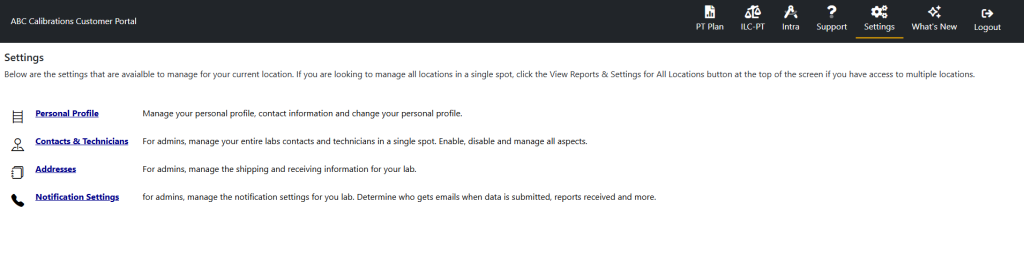
- Select View Settings from the Splash page options.
- In Settings, select Contacts & Technicians to manage the contacts and technicians in your account.
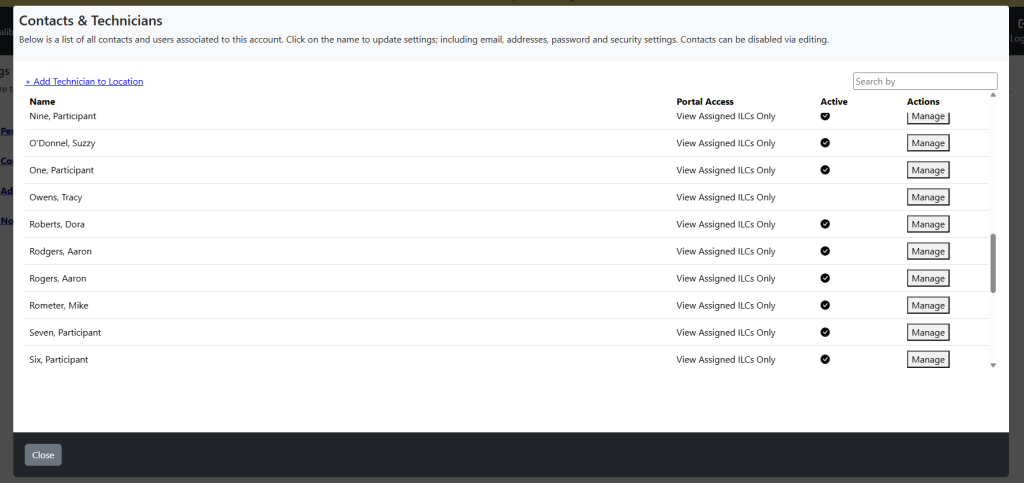
- The Contacts & Technicians window will populate allowing you to manage your contacts and technicians.
Add Contact to Location
- Select the “Add Contact To Location” link.
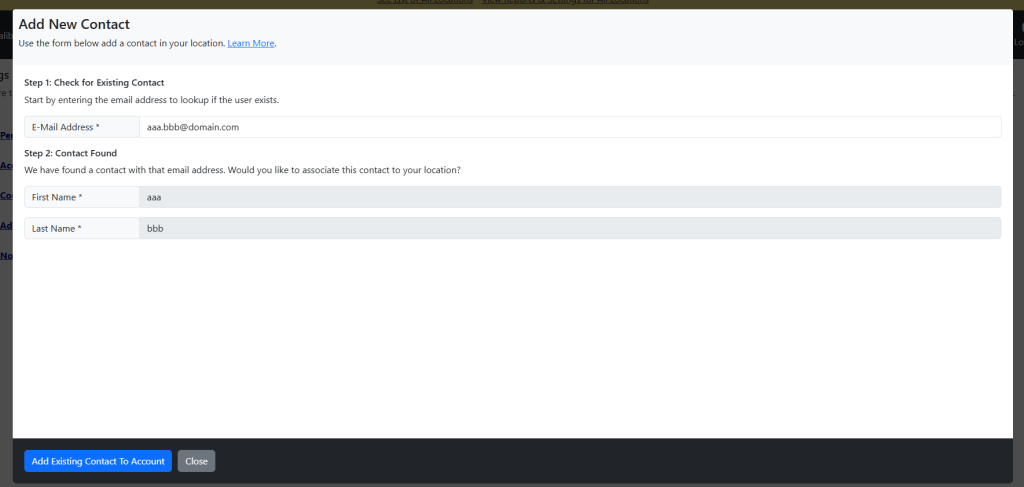
- On the resulting page, enter the email address of the contact. If the contact and email address are found, the contact information will be displayed and the user can be added as a contact.
- If there is no email address to associate with the new contact, NAPT will need to assist adding the contact to the account, and will need to be contacted.
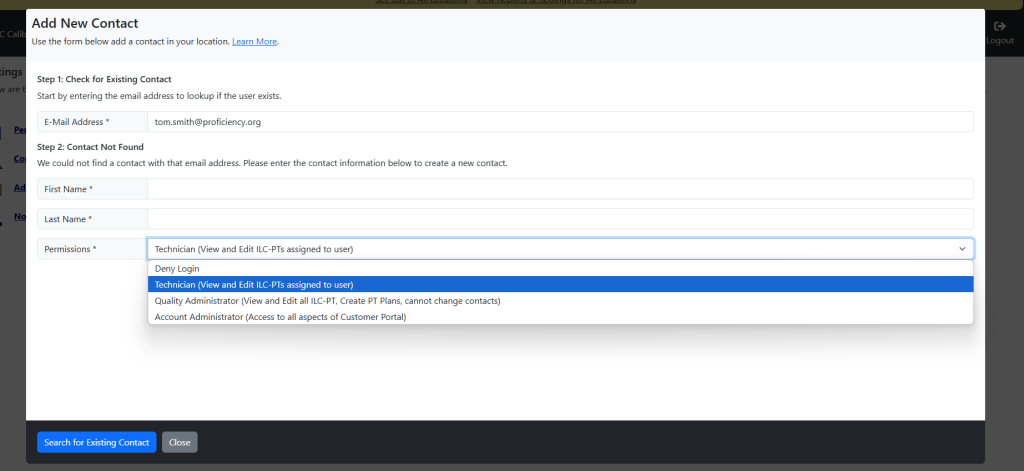
- If the email address is not found as an existing contact in the system, Step 2 will be displayed and contact information can be entered and the permissions level can be set for the contact.
- If the email address is found associated with an existing contact in the system. Step 2 will populate the contact information to verify that is the contact you would like to add to your location.
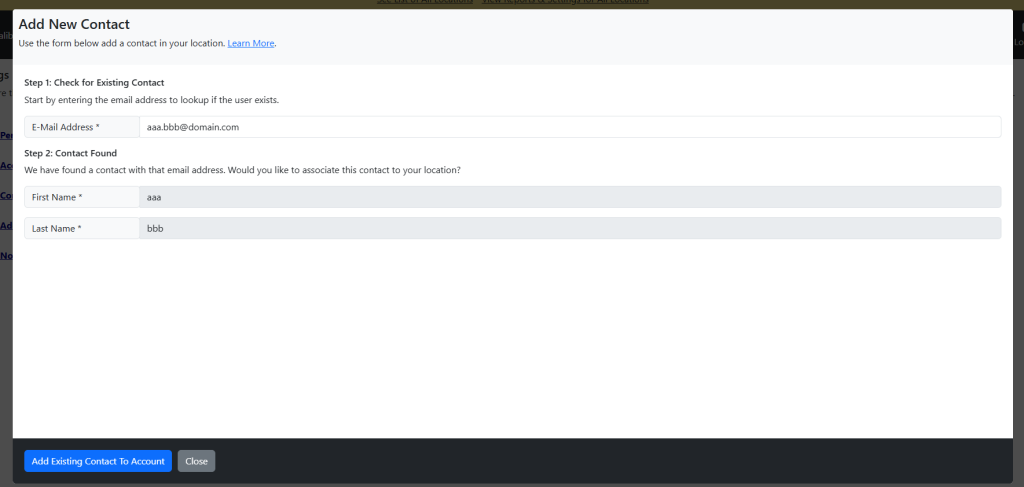
- Once the email address has been verified or the contact information has been added in Step 2, the contact can be added to the account.
- Creating the account or associating an existing Contact does not give the Contact access to the account, please see below about Managing Contacts to give the Contact access.
Manage Contact
- In the Contacts & Technicians window identify the contact you are adjusting and select the “Manage” button.
- The window will now display the User Profile and allow you to adjust:
- Basic Information, Activation will keep the profile active while inactive will archive the profile.
- Phone Numbers
- Addresses
- E-Mail, Also the contact’s username when logging into the customer portal.
- Security, Set the permissions level for the contact.
- Password, Set or reset the password for the user profile.
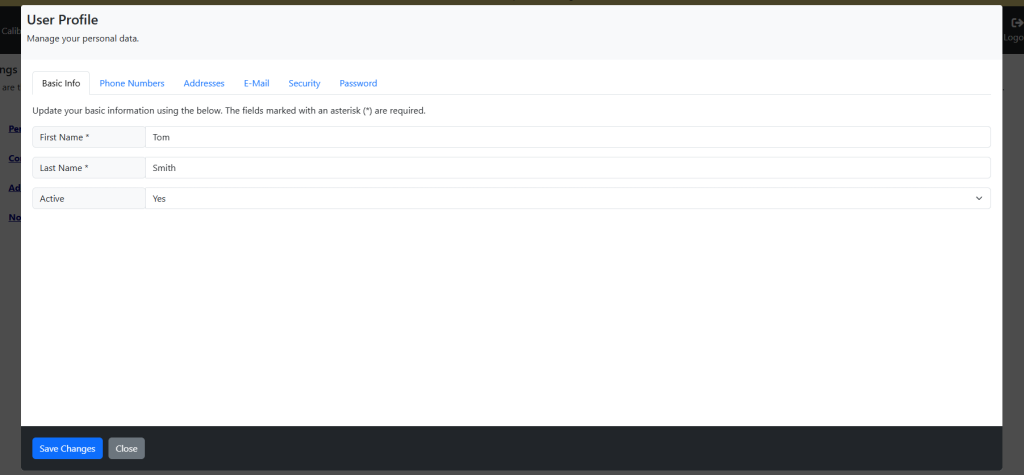
3. The password for the User Profile will need to be updated to allow the Contact access to the account. In the password section of the User Profile add and confirm a password for the Contact.

4. After adding a password for the contact they can now be informed that they have access to the account with their email address as the username, and the newly created password.
Remove User from Customer Portal
User management is a critical aspect of any organization to ensure the proper individuals have access to the right information.
NOTE: Only individuals who login with Admin Access can manage users.
Steps to Complete
- Login to the Customer Portal.
- Select View Settings from the Splash page options.
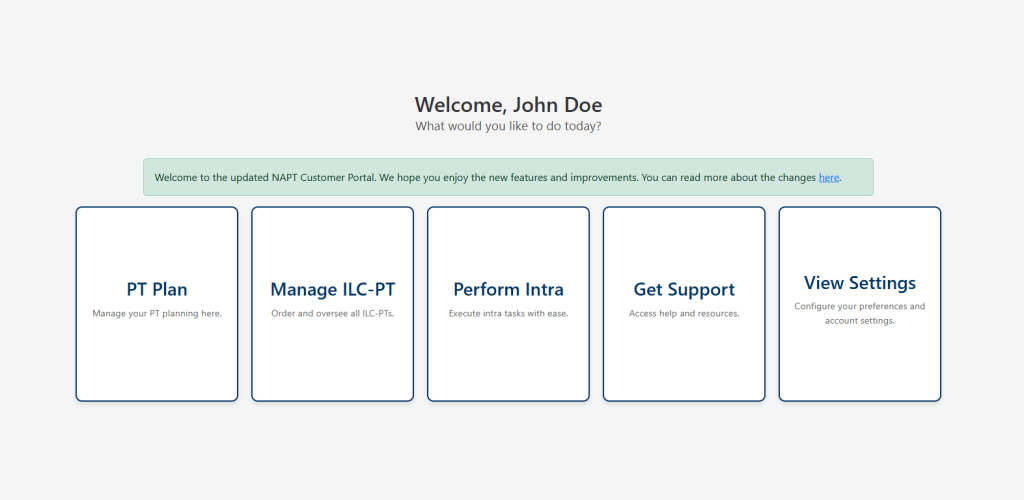
- In Settings, select Contacts & Technicians to manage the contacts and technicians in your account.
- The Contacts & Technicians window will populate and the user profile can be selected by clicking the “Manage” button.
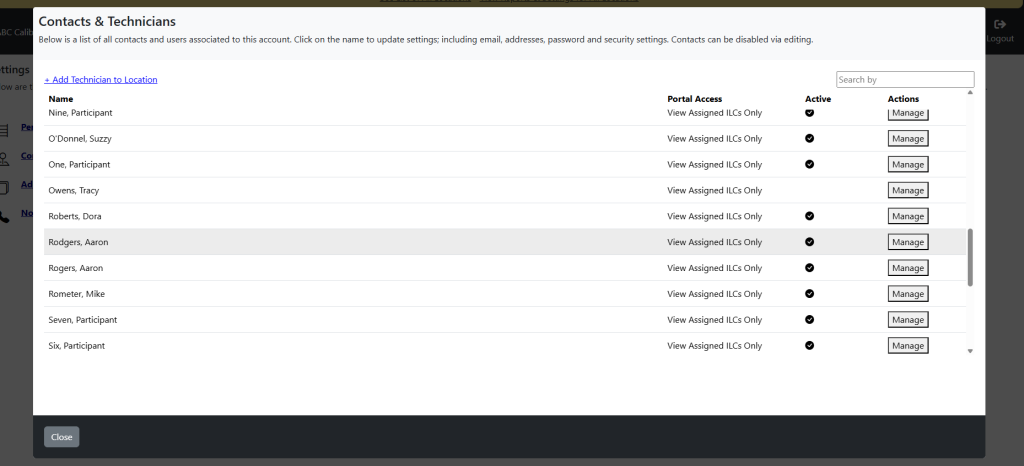
- The window will now display the User Profile.
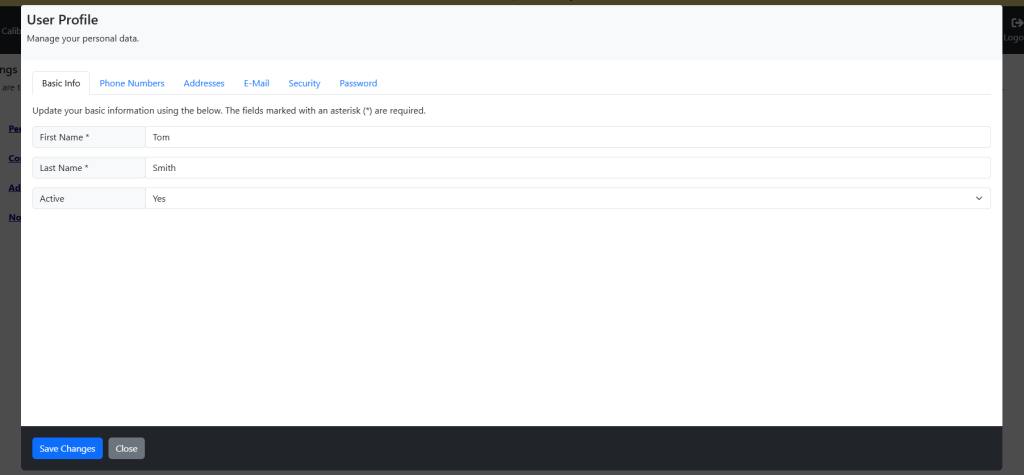
- On the resulting window, the Basic Info tab will be open for the User. Adjust the Active status from Yes to No. The user can no longer login to the Customer Portal.
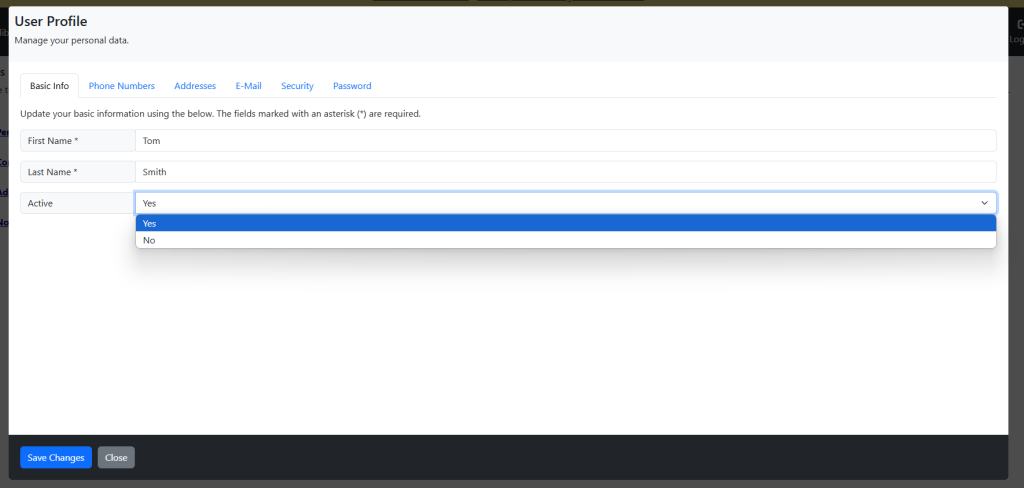
7. NAPT does not fully remove User profiles but archive them.
